

Law Ruler Integration Guide: 2 of 2 - Connect and Turn On Sync
Use this guide after you finish part 1.
If you have not asked Law Ruler to turn on Advanced API and raise your API rate limits yet, go back and do that first:
Law Ruler Integration Guide: 1 of 2 - Get Ready and Fill Out the Mapping Sheet
Looking For The Detailed Reference?
This page focuses on the safest setup order.
If you are looking for the deeper Law Ruler details that used to live alongside the setup steps, use the Law Ruler Technical Reference. The content was reorganized there, not removed.
That reference covers:
- webhook URL parameters and Params tab examples
- list IDs and list auto-add rules
- inbound and outbound sync behavior
- AI call payloads, notes, and recordings
- manual imports and file type notes
Safe Setup Order
Follow this order:
- Connect Law Ruler in Kayse
- Add the Kayse webhook URL in Law Ruler
- Link case types in CRM Mappings
- Turn on only the sync options you want
- Turn on status sync last
Step 1: Connect Law Ruler In Kayse
- In Kayse, go to Settings -> Integrations.
- Open Law Ruler.
- Enter:
- Username
- Password
- Client Root
- Client Secret
- Key
- Click Connect.
Each field in the connect form includes helper text so you can confirm which value belongs in each box.
Step 2: Copy The Webhook URL Into Law Ruler
After you connect, Kayse shows a webhook URL in the Law Ruler setup panel.
In Law Ruler:
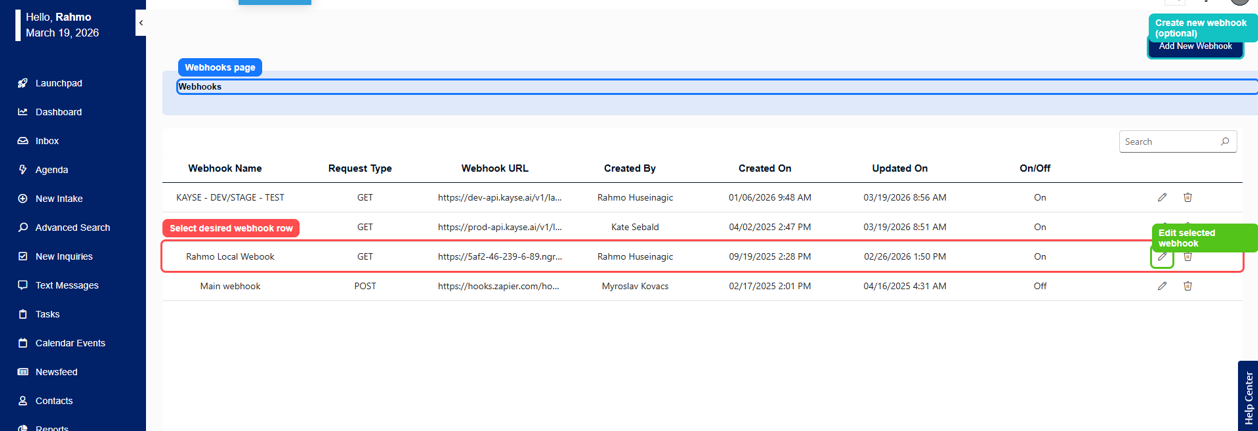
- Go to Setup -> Webhooks.
- Select the webhook row you want to use. If you do not have one yet, create it first.
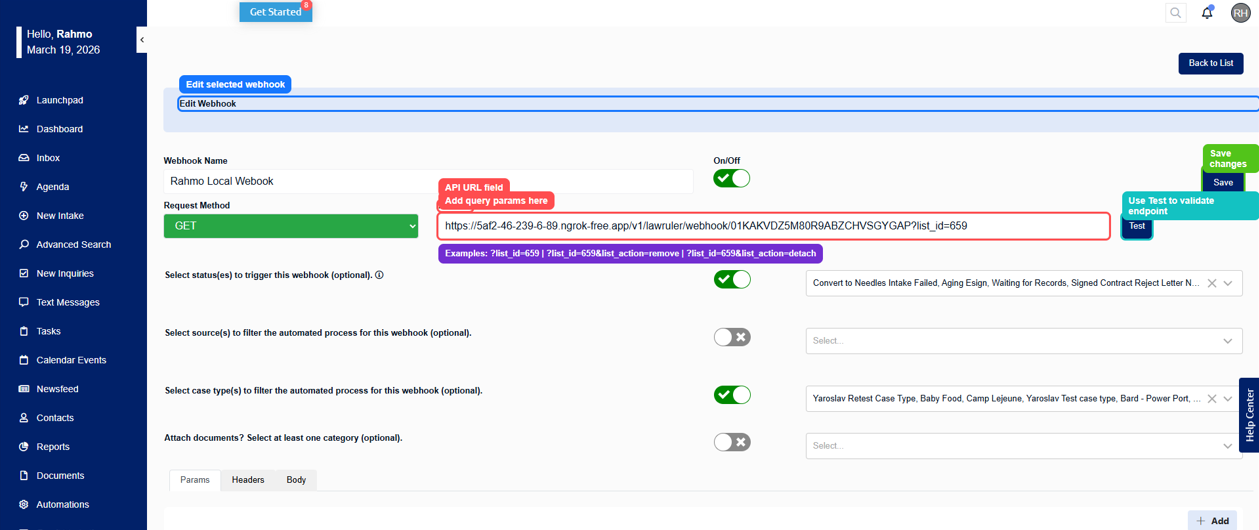
- Click Edit selected webhook.
- Paste the Kayse URL into API URL.
- Choose the case types and statuses this webhook should send.
- Make sure the webhook includes the required Law Ruler fields Kayse expects: Lead ID, Case Type ID, Case Type, Status ID, Status, Full Name, Created Date, Primary Contact ID, First Name, and Last Name.
- Save the webhook.
If a required field is missing, Kayse can reject the webhook request.
Optional: Send Records To One Kayse List
If you want this webhook to send records to one Kayse list, add list_id to the URL.
Example:
&list_id=123
You can find the list ID on the Kayse Lists page.
Need other URL options like
list_action,remove_from_list, orcampaign_id? See the Law Ruler Technical Reference for the full list.
Step 3: Link Case Types In CRM Mappings
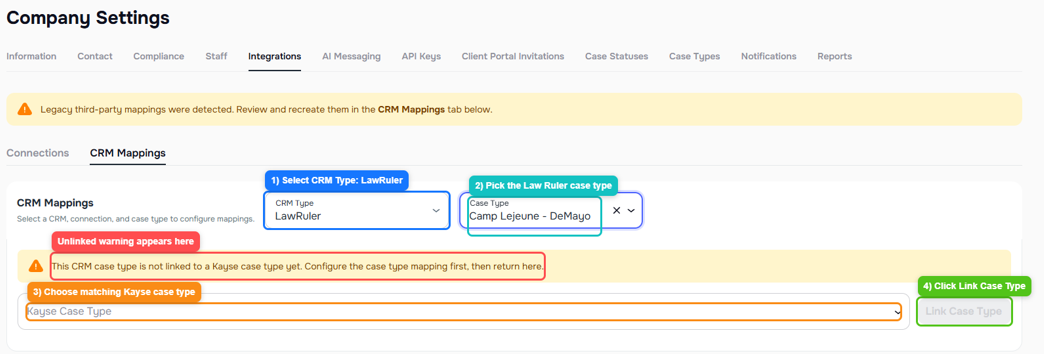
Before you rely on mapped fields, link each Law Ruler case type to the right Kayse case type.
- In Kayse, open Settings -> Integrations -> Law Ruler -> CRM Mappings.
- Pick a Law Ruler case type.
- Pick the matching Kayse case type.
- Save the link.
If a case type is not linked, mapped field sync will not be ready for that case type.
Step 4: Turn On The Settings You Need
In the Configuration tab, use this order:
- Enable Integration
- Receive data from LawRuler
- The outgoing options you want
- Sync case statuses
What The Main Settings Do
- Enable Integration
Turns all Law Ruler syncing on or off without disconnecting. - Receive data from LawRuler
Pulls cases, leads, and notes into Kayse. - Send data to LawRuler
Lets Kayse send data back to Law Ruler. - Send mapped fields to LawRuler
Sends mapped field changes from Kayse back to Law Ruler. - Send messages to LawRuler
Sends Kayse messages to Law Ruler as notes. - Send call records to LawRuler
Sends call details and transcripts to Law Ruler. - Send documents to LawRuler
Uploads files from Kayse to Law Ruler. - Sync case statuses
Keeps case statuses in sync between both systems.
What Syncs
Data Kayse Can Pull From Law Ruler
- cases
- clients
- notes and messages
Data Kayse Can Send Back To Law Ruler
- mapped field updates
- messages
- call records
- documents
- case status updates when status sync is on
Messages and call records sent from Kayse appear in Notes in Law Ruler under the Client Communications category. They do not show in the SMS or Email tabs.
Uploaded documents are sent through Law Ruler's document upload flow instead of the Notes feed.
Helpful Checks In The Setup Screen
The Law Ruler setup screen also shows:
- a setup checklist
- the webhook URL
- sync health timestamps for the last integration sync, the last successful status pull, and the last successful status push
- available field preview with the CRM field key, input type, and form section when one case type is selected
If you select more than one case type, use CRM Mappings to review the full field list instead of the small preview.
If You Turn Status Sync Back On Later
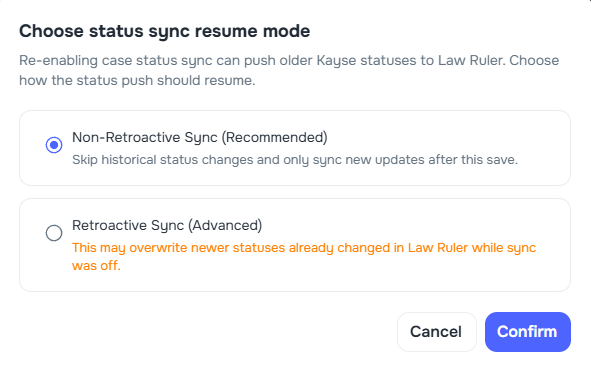
When you re-enable status sync after it was off, Kayse may ask how you want to resume:
- Non-Retroactive Sync
Only sync new status updates going forward. - Retroactive Sync
Replay older queued status updates. This can overwrite newer Law Ruler statuses.
If you are unsure, use Non-Retroactive Sync.
Troubleshooting
The webhook did not run
- Make sure the webhook URL was pasted into API URL
- Make sure the webhook was saved
- Some Law Ruler updates only send after the right trigger event (most webhooks fire on case status change)
- To force a sync for a record, open it in Law Ruler and click Send via Webhook
I do not see messages where I expected
Kayse messages show under Notes -> Client Communications in Law Ruler. They do not appear in the SMS or Email tabs.
I do not see a file
Some file types may not appear right away. If needed, test with a simple PDF or image file first.
Looking For More Detail?
If you need the full list of webhook URL parameters, the AI campaign payload format, or how recordings are named, see the Law Ruler Technical Reference.
Need Help?
If you need help, contact support@kayse.ai.
Keywords: LawRuler, Law Ruler