

How to Access and Understand Your Billing and Usage Reports in Kayse
Kayse AI helps law firms save significant time and money compared to traditional call centers or internal outreach teams. By automating client communication, data collection, and follow-ups, Kayse AI delivers higher accuracy, faster response times, and better client engagement—all at a fraction of the cost.
This means your team can focus on high‑value work while Kayse handles the rest with greater consistency and effectiveness. 🚀💰
Welcome! This short guide will show you how to find, filter, export, and schedule your billing and usage reports. For spending caps, billing preferences, alerts, and wallet behavior, see Billing Preferences, Reports, and Wallet. We’ve also included your training video right inside this article to help you follow along. 🎥😊
For how Voice AI call duration is rounded and billed, including voicemail and call-screening examples, see Voice AI Call Duration Billing.
▶️ Watch the Video First
Use this video as a visual guide while you read the steps below:
Step 1: Log In to Your Dashboard
- Go to your company’s login page. This requires admin access by the way.
- Enter your email and password.
- Click Log In.
Once you’re in, you’ll land on your main dashboard.
Step 2: Open Your Billing or Usage Section
- Look at the left-hand menu.
- Click on your company logo in the top left corner of the menu.
- Then, click on the settings icon to the right of your company logo as shown here:

- Click Billing and Reports in the options at the top of the screen.

- A list of your reports will appear.
This is where all your past monthly reports are stored. 🗂️
📅 Step 3: Filter Your Reports
You can filter reports by month or by a custom date range.
- Find the Filters section at the top.
- You can filter by AI Agents, so for example, if you want something specific instead of all, go to the agents filter and type in "Zantac" or "Lejeune" etc.
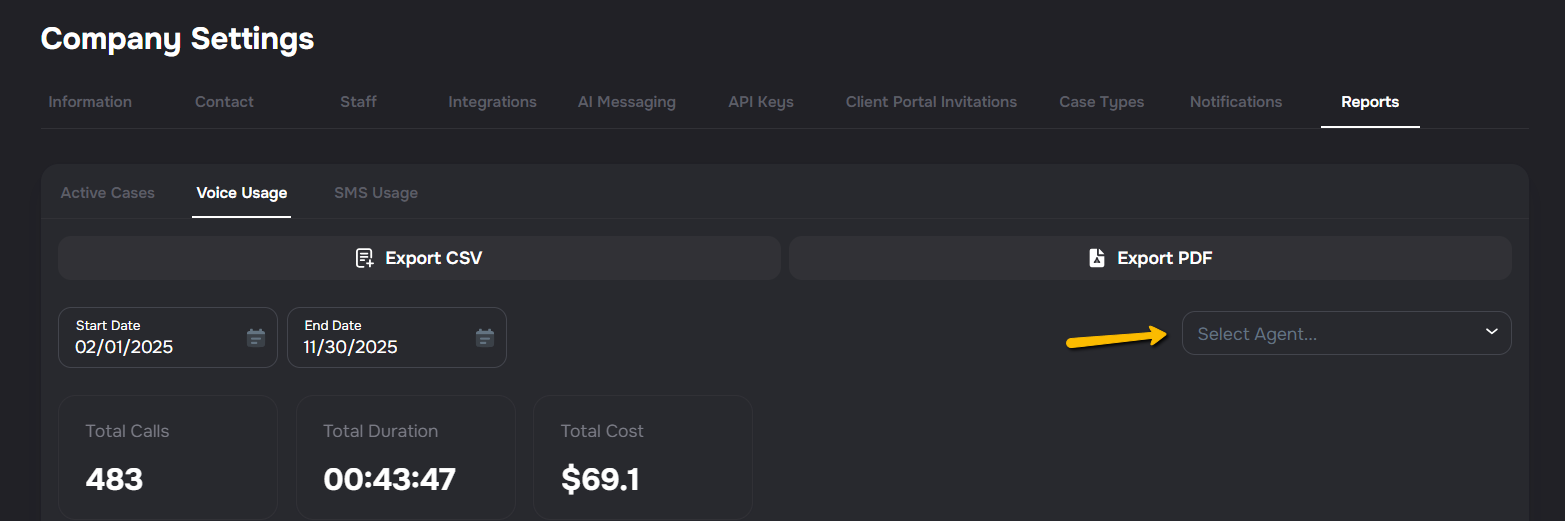
- Choose the start and end dates you want to review.
- Click Apply.
Your list will now show only the reports for that date range. 📆✨
Step 4: Open & Review Your Report
Click on any report to open it. Inside, you’ll see:
- Total usage
- Number of calls, messages, or interactions
- Successful calls
- Total conversions
- Call center equivalent cost
- Costs (if applicable)
- Courtesy credits, when credits were applied
- Any special notes for that month
Courtesy credits are shown separately from usage costs when they apply, and the report total reflects those credits.
Step 5: Download Your Report (Optional)
If you want to save a copy:
- Click the Download button.
- Choose your file type (PDF, CSV, etc.).
- Save it to your computer.
Voice Usage and SMS Usage CSV exports include a Campaign Name column, so you can sort and filter rows by campaign directly in your spreadsheet. 📊
If you turn on Break out PDF by case type, Kayse downloads a .zip file with one PDF per case type for the selected date range.
This is great if you need to share it with your team. 💼
Schedule Automated Billing Reports
You can now schedule billing reports to send automatically.
- Go to Settings → Billing and Reports → Scheduled Billing Emails.
- Turn on Enable scheduled emails.
- Choose Daily, Weekly, or Monthly delivery.
- Weekly reports send on the weekday you select. Monthly reports send on the day of month you select.
- Reports send at 8:00 AM in your company timezone.
- Your primary billing contact receives the report automatically, and you can add extra recipients if needed.
If you have any questions, our support team is always happy to help! 😊